The Interface
Vectopen has three interfaces. They share the same canvas, tools and files — only the layout of the panels changes. Pick the one you like; you can switch at any time and nothing in your document changes.
| Smart | Modern | Pro | |
|---|---|---|---|
| Best for | Getting started, a big clean canvas | Everyday design | Long sessions, everything visible |
| Tools | In the Layers panel's side column | Bar at the bottom | Column on the left |
| Object properties | Floating panels | One inspector on the right | Docked panels on the right |
| Open Preferences from | The icon where the two rulers meet (top-left) | ⚙ in the top bar | ⚙ in the top bar |
Switching interface
The same steps work in all three:
- Open Preferences (see the last row of the table above).
- Go to the Theme tab.
- In the first row, UI Mode, choose Smart, Modern or Pro.
In Pro there's also a shortcut: the Smart / Modern / Pro buttons at the right of the top bar.
The change is immediate and remembered next time. Each interface owns its panels: when you switch, the floating panels of the previous one close.
Smart
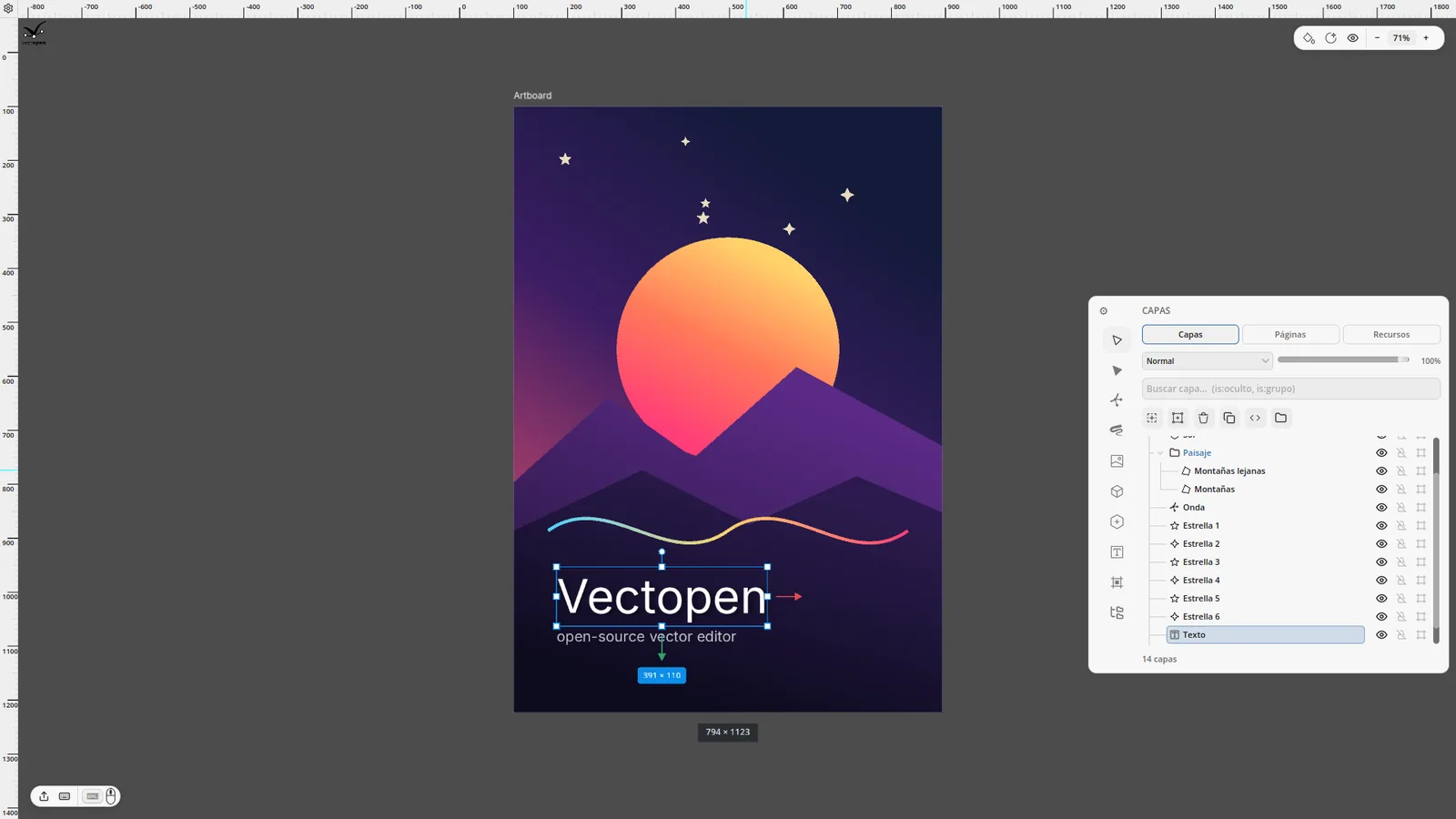
A large canvas with floating panels. The Layers panel (with the tools in its side column) floats on the right and can be resized by dragging its left edge. The small buttons at the bottom-left open export, the keyboard shortcuts and the mouse settings; the pill at the top-right has view options and zoom.
Modern
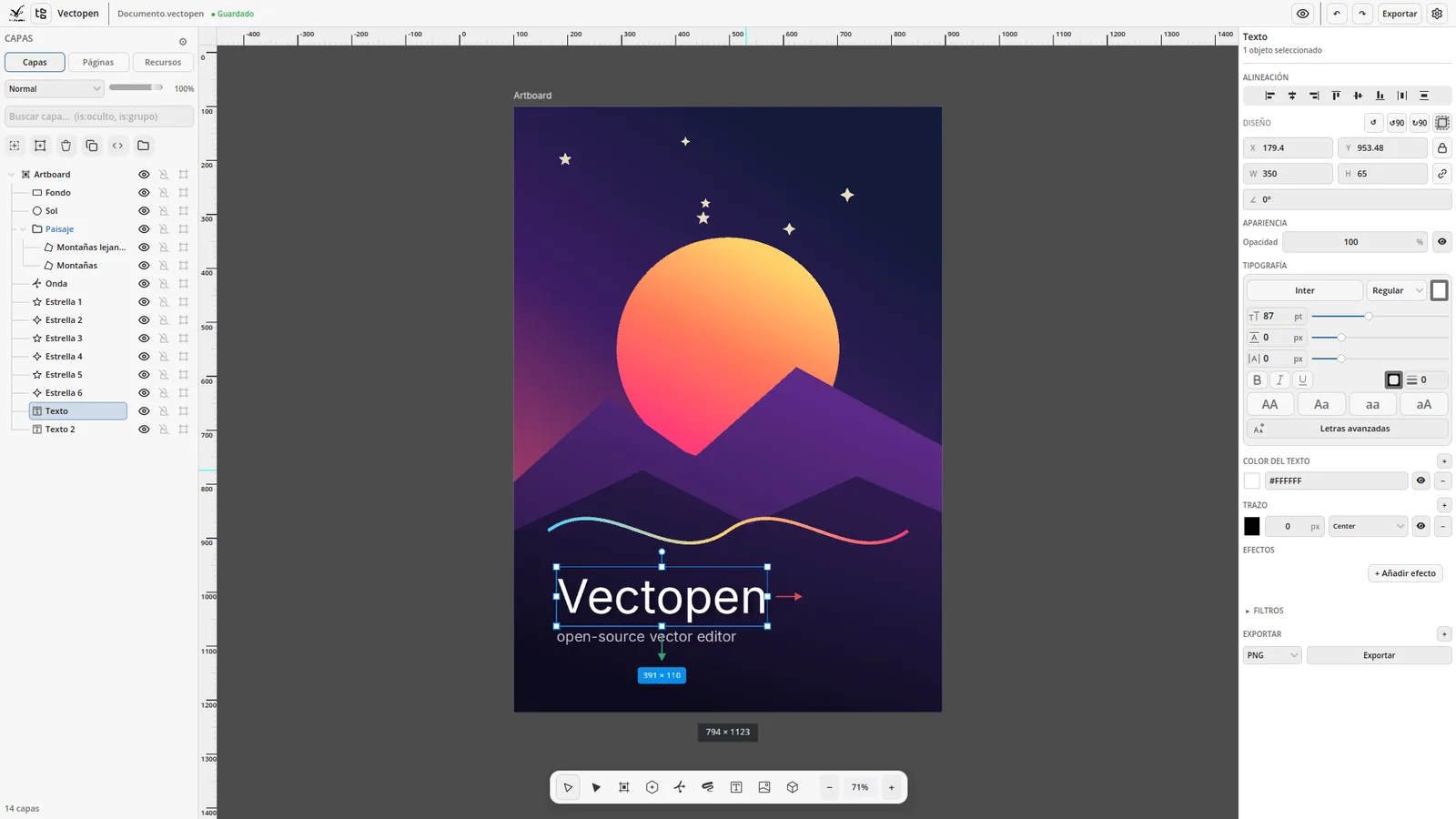
- Top bar — document name and save state, preview, undo/redo, Export and ⚙ settings.
- Left — Layers · Pages · Resources. Drag the panel's right edge to resize it.
- Right — the inspector: everything about the selection, in collapsible sections (alignment, layout, appearance, typography, fill, stroke, effects, filters, vectorize, export).
- Bottom — the toolbar and zoom. Tools with options (shapes, Bézier, brush, text) open their options in the inspector.
Pro
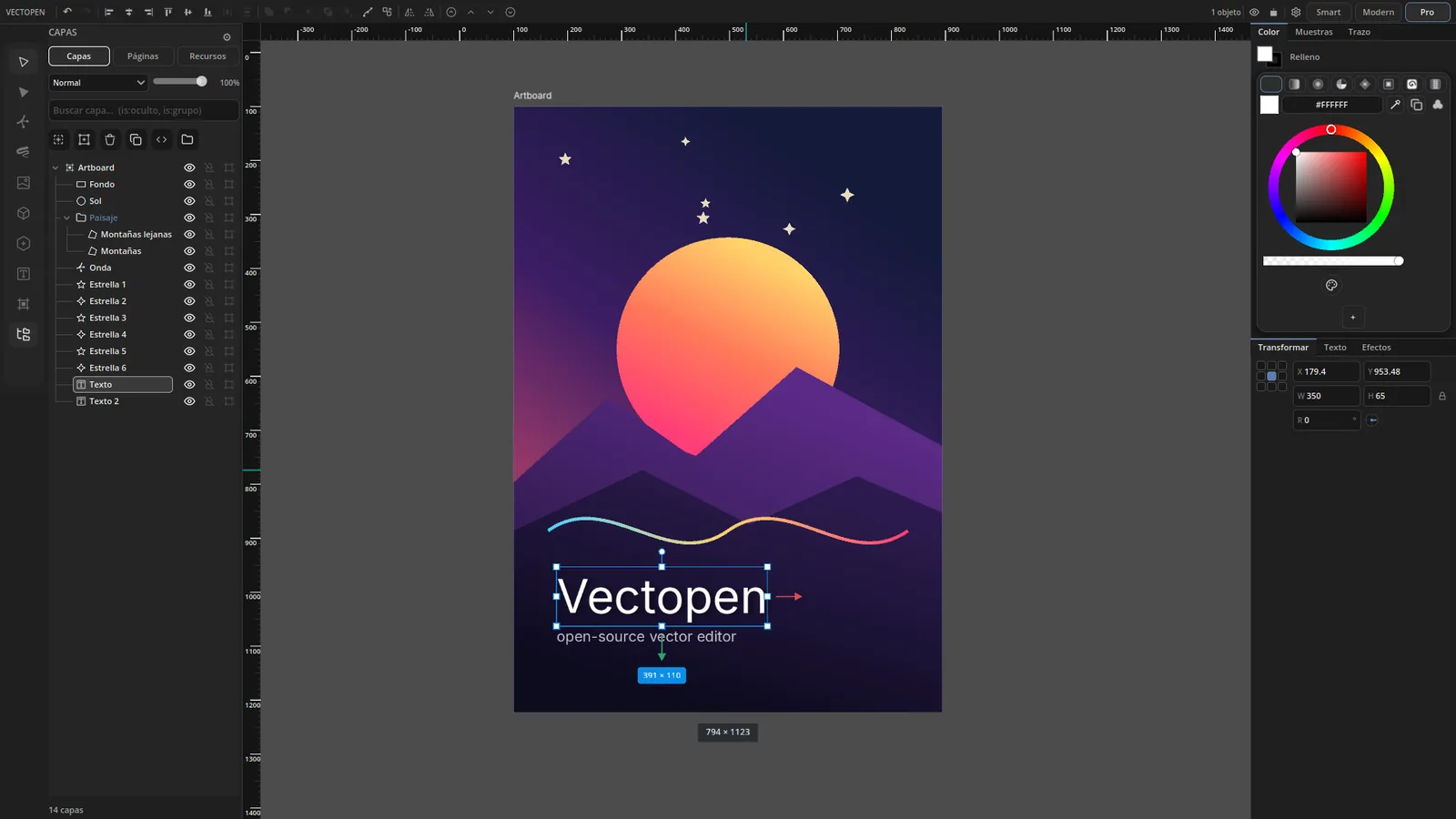
- Top toolbar — undo/redo, align and distribute, arrange, boolean operations, flip, and the interface buttons.
- Left — tools column and Layers.
- Right — docked tabs: Color · Swatches · Stroke on top; Transform · Text · Effects below. The Text tab has the full typography controls; Effects also holds filters and vectorize.
Common to all three
Canvas
- Pan: hold Space and drag, or drag with the middle mouse button.
- Zoom: scroll wheel (under the cursor), Ctrl+= / Ctrl+-, 5 resets to 100 %.
- Rulers: along the top and left. Drag from a ruler to create a guide.
- Several artboards can live in one document; new shapes go to the artboard you draw on.
Scrolling long panels
Drag with the middle mouse button over the inspector (or the Layers panel) to scroll it.
Theme and language
Light or dark theme, and 10 languages — English, Spanish, French, German, Portuguese, Russian, Chinese, Japanese, Arabic and Hindi. Change them in Preferences → Theme. The first time, Vectopen uses your system language.
Preferences
Open Preferences from ⚙ in the top bar (Modern and Pro) or the small icon where the two rulers meet (Smart). Tabs: Window, Rulers, Theme (UI mode, theme, language, default colours, MCP server), Snap and Panels.
Keyboard shortcuts
See Keyboard Shortcuts. Every shortcut can be changed from the keyboard panel.