Pen, Bézier & Node Editing
Pen
A quick polyline tool: every click adds a straight point.
- Left-click — start a line, or add the next point.
- Right-click — finish the line. Switching tools also finishes it.
Bézier (D)
The classic anchor-point pen:
- Click to place a corner point.
- Click and drag to place a smooth point with handles; the handles stay symmetric.
- Hold Alt while dragging to move each handle independently.
- Move near the first point — it highlights; click to close the shape.
- Enter or Escape finishes an open path.
The result is an editable path: fill, stroke (including gradients), stroke width and open/closed are all in the inspector.
Editing nodes
A path is made of points (anchors) joined by segments. Each point can have up to two handles that bend the segments on either side of it.
Kinds of point
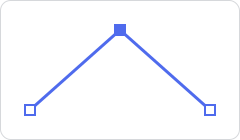 |
Corner point — no handles. The segments meet at an angle. | Bézier: a plain click. |
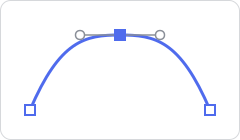 |
Smooth point — two handles in a straight line. The curve passes through the point without a kink. | Bézier: click and drag. Node edit: Alt + drag from a corner point pulls handles out. |
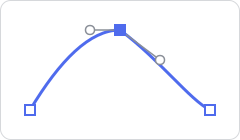 |
Independent handles — each side has its own angle and length, for a sharp but curved turn. | Bézier: hold Alt while dragging a handle. |
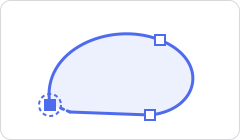 |
Closing a path — the last segment returns to the first point. A closed path can be filled. | Bézier: move near the first point until it highlights, then click. |
Using the Node edit tool
Select a path and choose the Node edit tool. Its points and handles appear.
| Action | How |
|---|---|
| Select a point | Click it · Shift+click adds or removes from the selection |
| Select all points | A |
| Move points | Drag them (all selected points move together) |
| Add a point | Double-click on the path — the new point gets short handles along the segment |
| Delete points | X, Delete or Backspace |
| Make a corner point smooth | Alt + drag from the point |
| Reshape a curve | Drag a handle |
| Grab mode | G, then move the mouse; X / Y lock to an axis; click or Enter to confirm, Escape to cancel |
| Back to Select | Escape |
Every edit is one undo step.
What can be edited node by node
- Paths drawn with the Pen or Bézier tool.
- Imported SVG artwork — paths keep their real Bézier curves. (Shapes imported with a gradient fill become polygons whose curves are approximated by points; see Importing SVG.)
- The result of Convert to curves — available in the Boolean section of the inspector (Modern), the top bar (Pro) and the right-click menu. It turns a boolean object, or two or more selected shapes (merged together), into one editable path.
Primitive shapes — rectangle, ellipse, polygon, star, drop and the custom shapes — are edited through their parameters (corner radius, number of points…), not point by point. A single primitive shape can't be converted to a path yet.